
If you've built your Squarespace site and you're not sure what to do next, you're not alone. So many founders I work with have a beautiful website and no idea whether Google can actually find it, or how it's performing once it's live.
I always believe strategy should inform design, not the other way round, and that principle doesn't stop once your site goes live. Any changes you make to your site going forward - new pages, updated copy, a fresh SEO push - should be led by real data rather than a hunch. That's why connecting Google Search Console isn't a one-off box to tick, it's something worth checking in on regularly, so the decisions you make about your website are grounded in what's actually happening, not guesswork.
Google Search Console (GSC) is a free tool that shows you how your website is performing in Google search. It tells you which pages are indexed, which search terms are bringing people to your site and flags anything stopping Google from crawling your pages properly. If you've ever wondered why your site isn't showing up when you search for it, this is where you'd find out.
Sidenote: it's worth being clear on the difference between this and Google Analytics, since the two get confused a lot! Search Console is everything that happens before someone lands on your site - how people find you, what they searched for, whether Google can even see your pages. Google Analytics is everything that happens once they're on your site - how long they stay, which pages they visit, where they drop off. You need both for the full picture, but this guide is all about Search Console, the "before" half of that story.
It takes just a few minutes to set up, and it’s so simple that I guarantee even your Nan could do it! This guide will walk you through exactly how to do it on Squarespace, plus how to use the newest feature that lets you connect your social accounts too.
Why Google Search Console matters for your Squarespace site
Before we get into the how, a quick word on why this is worth doing today rather than someday.
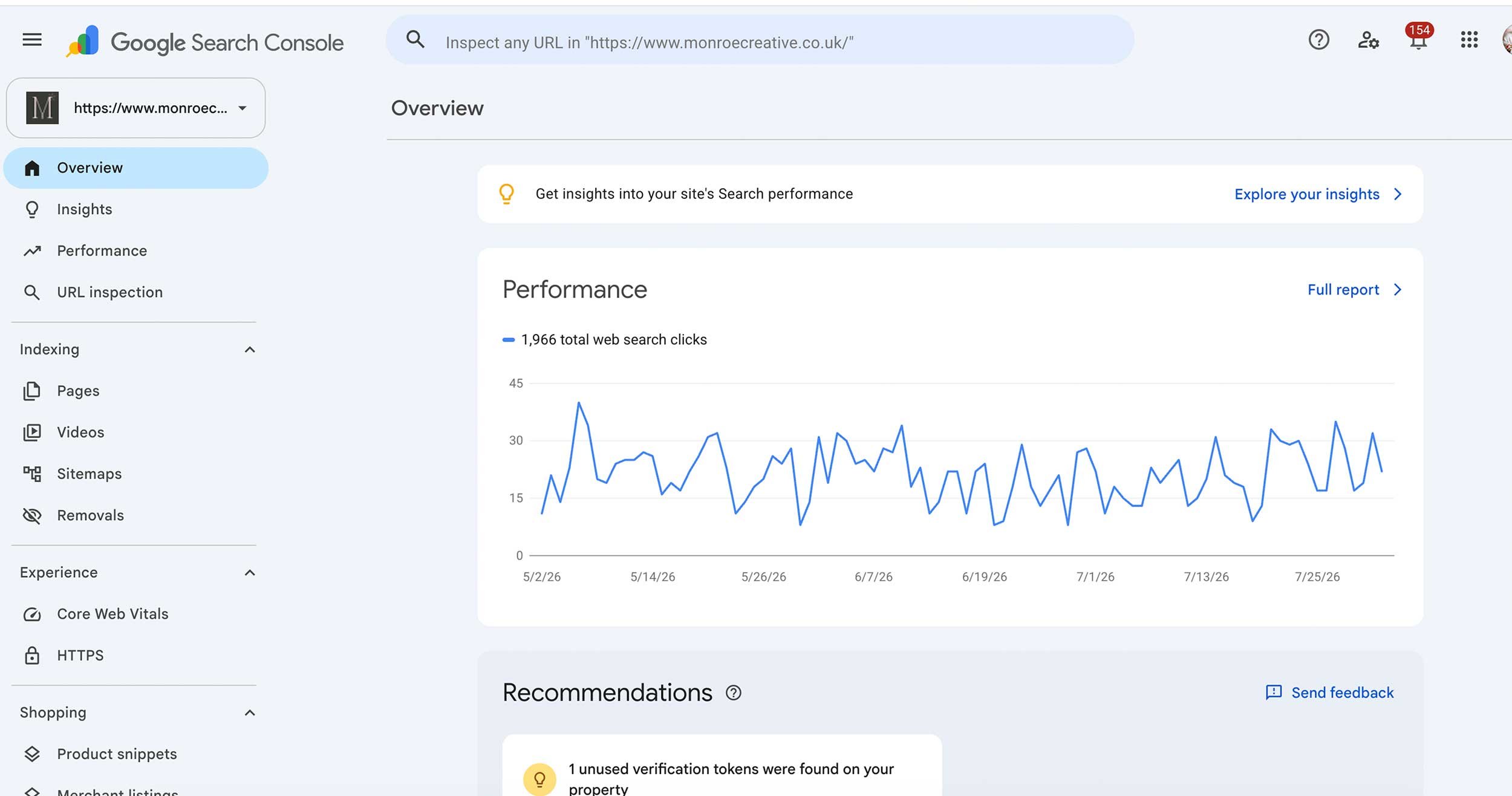
Search Console is where you'll see the keywords people are actually typing in to find you, which pages are ranking and which ones Google can't see at all. It's also the first thing I check when a client tells me their traffic has dropped, because it usually has the answer. If you're investing any of your valuable time into SEO or blog content, this is the tool that tells you whether any of it is working.
How to connect your Squarespace site to Google Search Console
Here's the step by step. Have your Squarespace site open in one tab and Google Search Console in another, and you'll have this done in a few minutes.
Step 1: Have a Google account ready
You'll need a Google account to connect with, so if you don't already have one for your business, set one up first at accounts.google.com. If this is a business, I'd always recommend using a business Google account rather than a personal one, so you're not tied to one person's login further down the line.
A quick reassurance if you've never used Google Search Console before: you don't need to set anything up there first, a plain Google account is all this step requires. Your Search Console property gets created automatically in the next step, as part of connecting through Squarespace.
This is one of the steps I always ask my own clients to do themselves rather than handing it over to me, purely so the account stays in your name and under your ownership from day one.
Step 2: Connect and verify
This is the part that trips people up, but on Squarespace it's super simple, and it all happens in one go. You don't need to go into Google Search Console separately or manually add a property, Squarespace handles it all for you.
In your Squarespace dashboard, go to Analytics, then click Search Keywords. You'll see a prompt to connect, so click Connect, sign in with the same Google account from Step 1, and review and allow the permissions it asks for. That's it! You're both connected and verified at the same time, no code or technical setup needed. It typically takes up to 72 hours for keyword data to start showing up in this panel, though your full data will be visible in Search Console itself sooner.
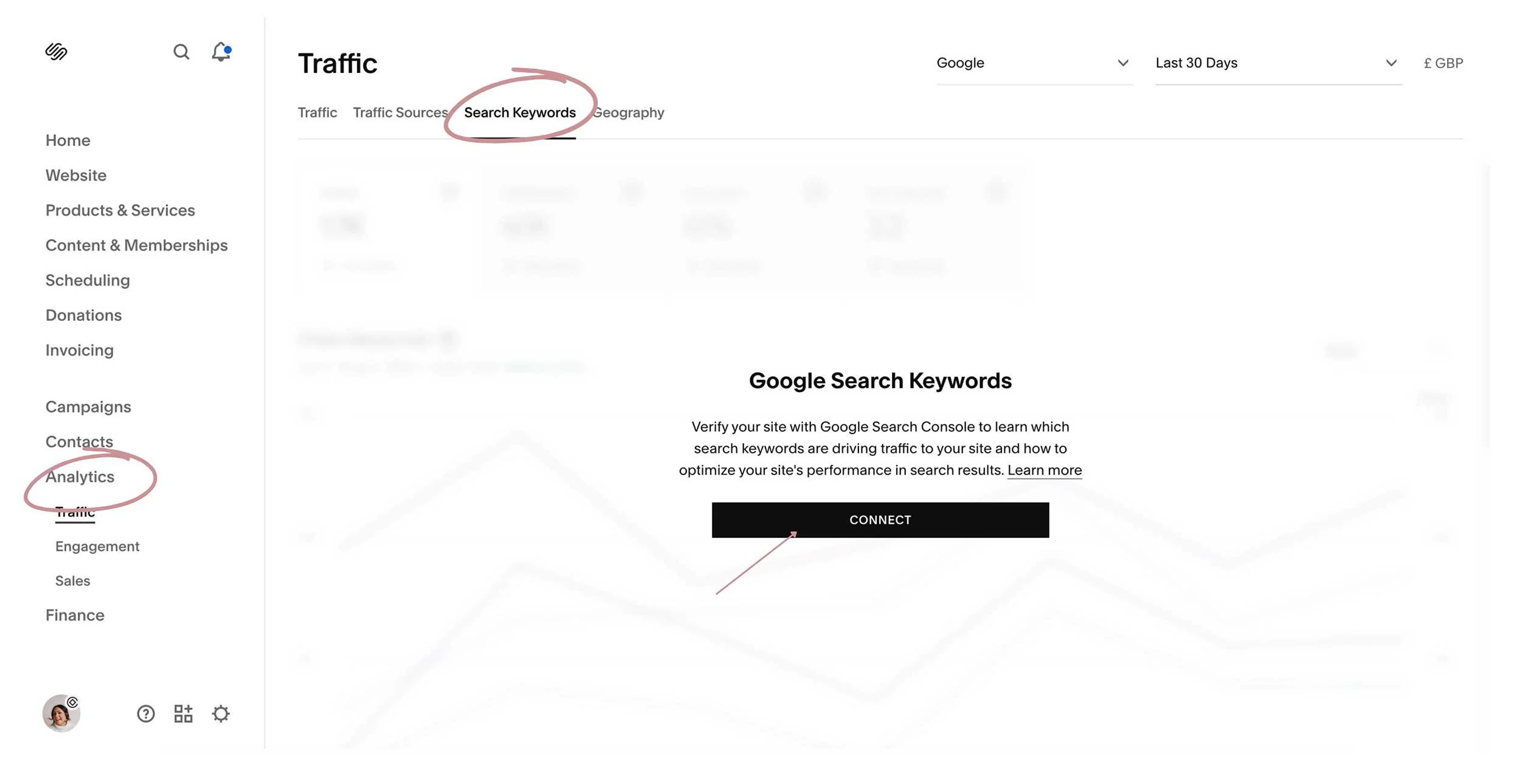
This connects your main site URL, which covers every page on your site, your homepage, your about page, every blog post, all of it. If you ever want the more advanced version that also tracks every technical variation of your address (www vs non-www, and so on), that's a slightly more involved setup done directly through DNS, but it's not something you need to think about to get real, useful data from this method.
Step 3: Submit your sitemap
Once connected, submit your sitemap so Google knows to crawl your whole site rather than just the homepage. This part happens directly in Google Search Console rather than in Squarespace, so here's exactly how to get there:
Go to search.google.com/search-console and sign in with the same Google account you used to connect in Step 2
Your property will already be listed, since it was created automatically when you connected, so click on it to open it (no need to add anything new)
In the left-hand menu, click Sitemaps
Enter sitemap.xml in the box and click Submit
Squarespace generates this sitemap for you automatically, so you don't need to create or upload anything yourself. Your default sitemap sits at yourdomain.com/sitemap.xml.
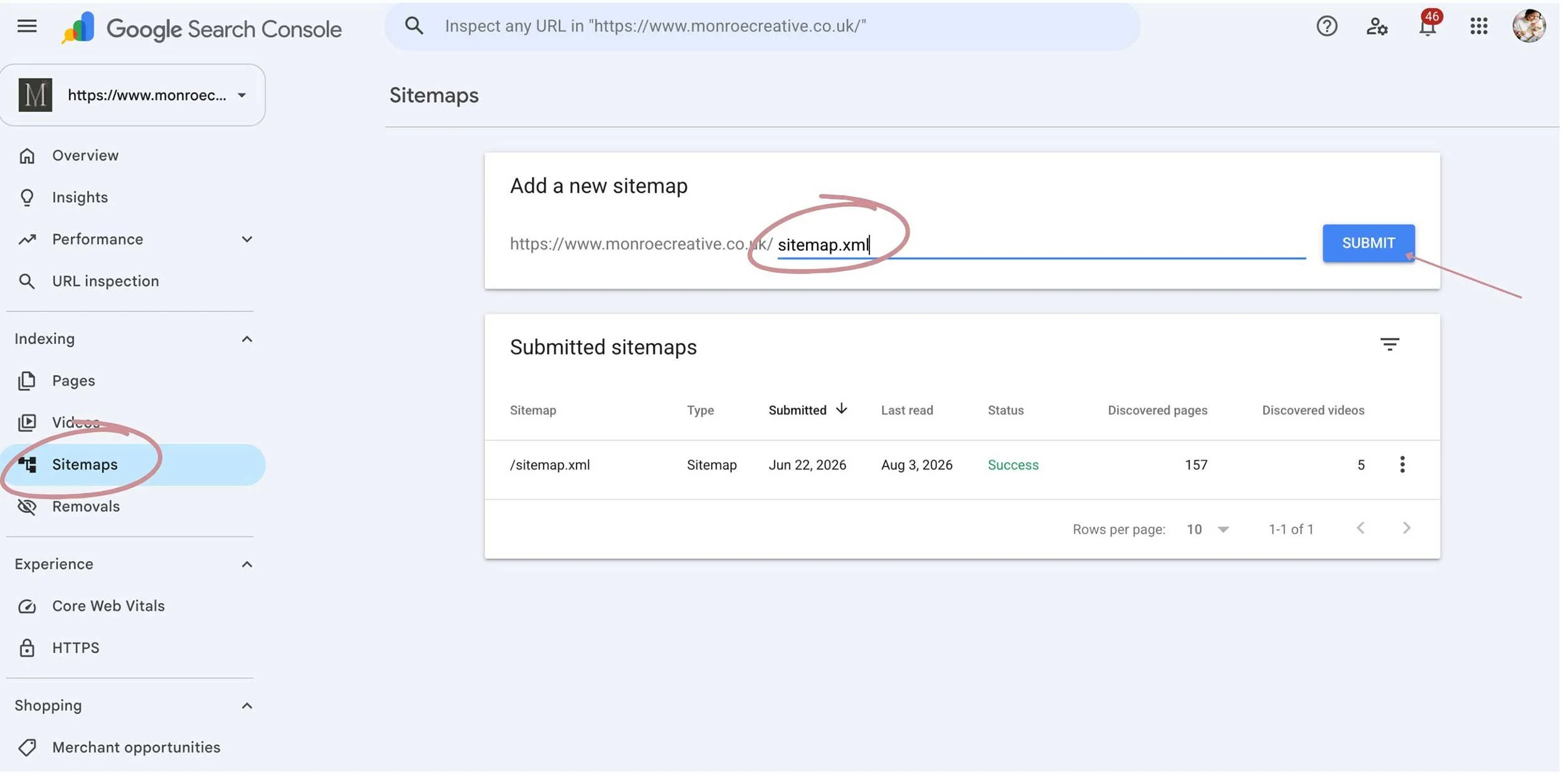
And that's it, you're connected. Give it a few days for data to start populating, and don't panic if the numbers look sparse at first! Google needs time to crawl and index your pages properly.
Give it time, then know what you're looking at
Once you're connected, resist the urge to check back the next day expecting a full picture! Search Console needs time to crawl your site and start gathering meaningful data, so give it at least a couple of weeks before you draw any conclusions. Checking too early usually just means an empty dashboard and unnecessary worry.
Once there's enough data to look at, here are a few simple metrics worth getting familiar with, found under Performance in the left menu:
Clicks - how many times someone clicked through to your site from Google. This is your real traffic figure.
Impressions - how many times your site appeared in search results, whether anyone clicked or not. A high number of impressions with low clicks can be a useful signal.
Average click-through rate (CTR) - the percentage of impressions that resulted in a click. If this is low on a page that's getting plenty of impressions, it's often a sign your title or meta description isn't compelling enough to earn the click, and worth rewriting.
Average position - roughly where your page tends to sit in Google's results for a given search term. If you're sitting around position 8 to 15 for a term you care about, that page is often a good candidate for a content refresh, since you're close enough to be worth the effort.
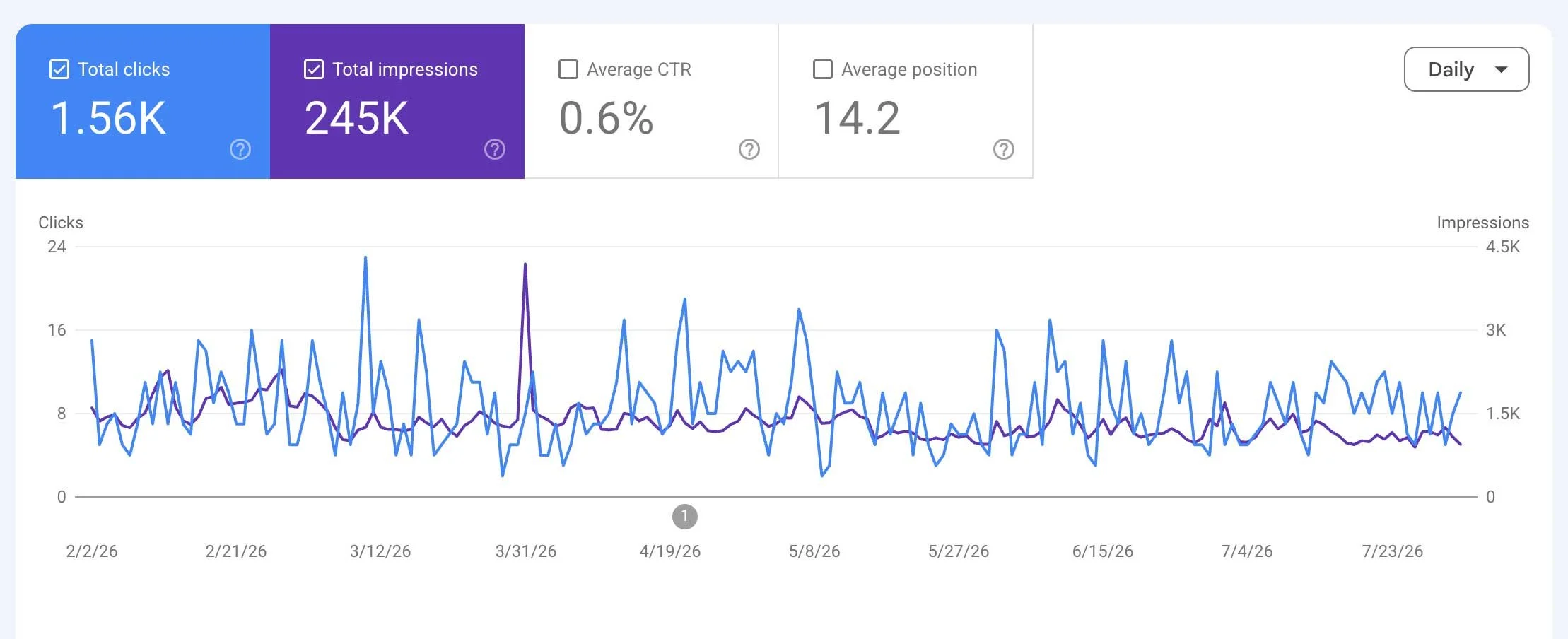
You don't need to become a data analyst to get value from this. Even a quick monthly check of these four numbers will tell you far more about what's working than guessing ever will.
The new feature: connecting your social accounts to Search Console too
And here's the update that prompted this whole post. Google has just rolled out something called Platform Properties, a new addition to Search Console that lets you connect Instagram, TikTok, X and YouTube as their own separate properties, alongside your website.
Until now, GSC could only tell you how your website performed in search. This update means you can also see how your social content shows up across Google Search, Discover and Google News, including the actual search queries sending people to your posts and videos. If you're putting real effort into content on those platforms, this finally gives you a way to measure whether it's earning you any visibility beyond the app itself.
How to connect a social account to Search Console
In Search Console, click the property selector in the top left
Click "Add property"
Choose the platform you want to connect: Instagram, TikTok, X or YouTube
Follow the prompts to sign in to that account and authorise the connection
Once Google verifies ownership, click "Go to property"
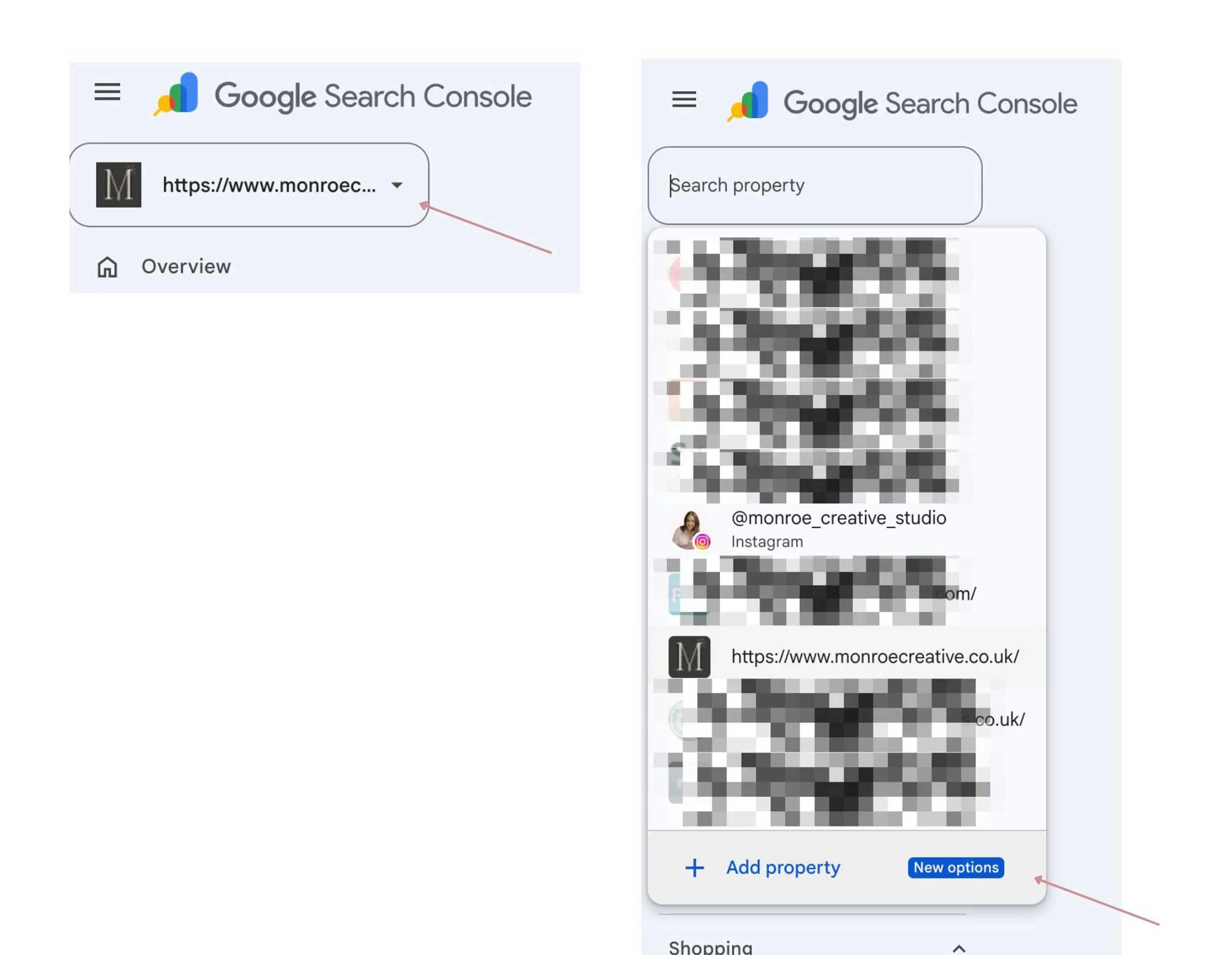
Each platform needs to be added as its own separate property, and if you manage more than one account per platform, such as a personal and a business Instagram, each one needs connecting individually. Data usually takes a couple of days to start appearing, and Google has said this is rolling out gradually, so if you don't see the option yet, check back in the coming weeks.
In short
Getting Google Search Console connected, whether it's for your website or your social accounts is all about making sure the decisions you make for your business - what you write about, what you tweak, where you focus your time - are grounded in what's actually happening rather than a guess. Fifteen minutes of setup now means you've always got real data to come back to.
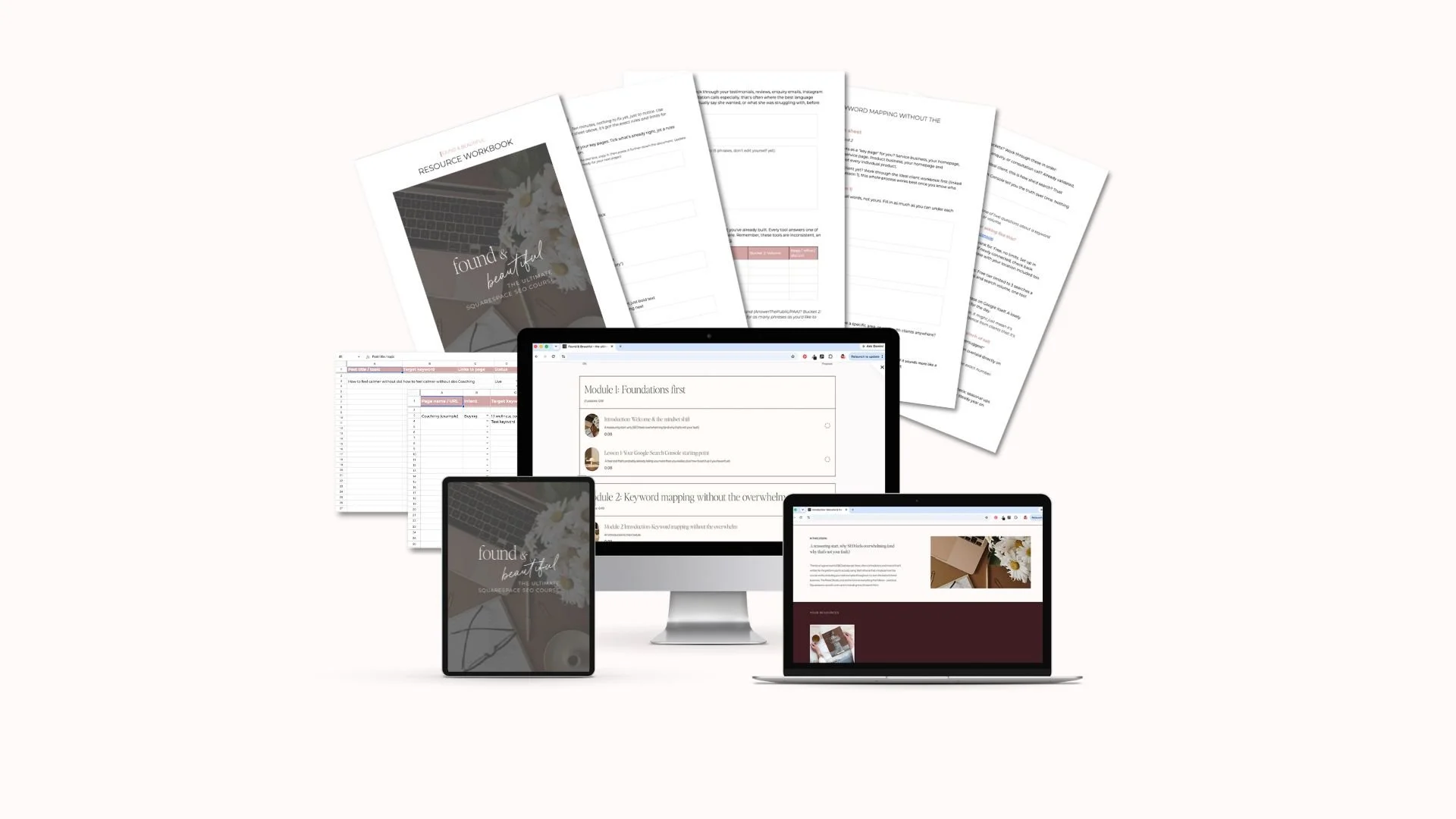
Search Console is a great tool as part of your wider SEO picture …
That's exactly what I cover, step by step, inside ‘Found & Beautiful’, my Squarespace SEO course. Explore what’s included below: